
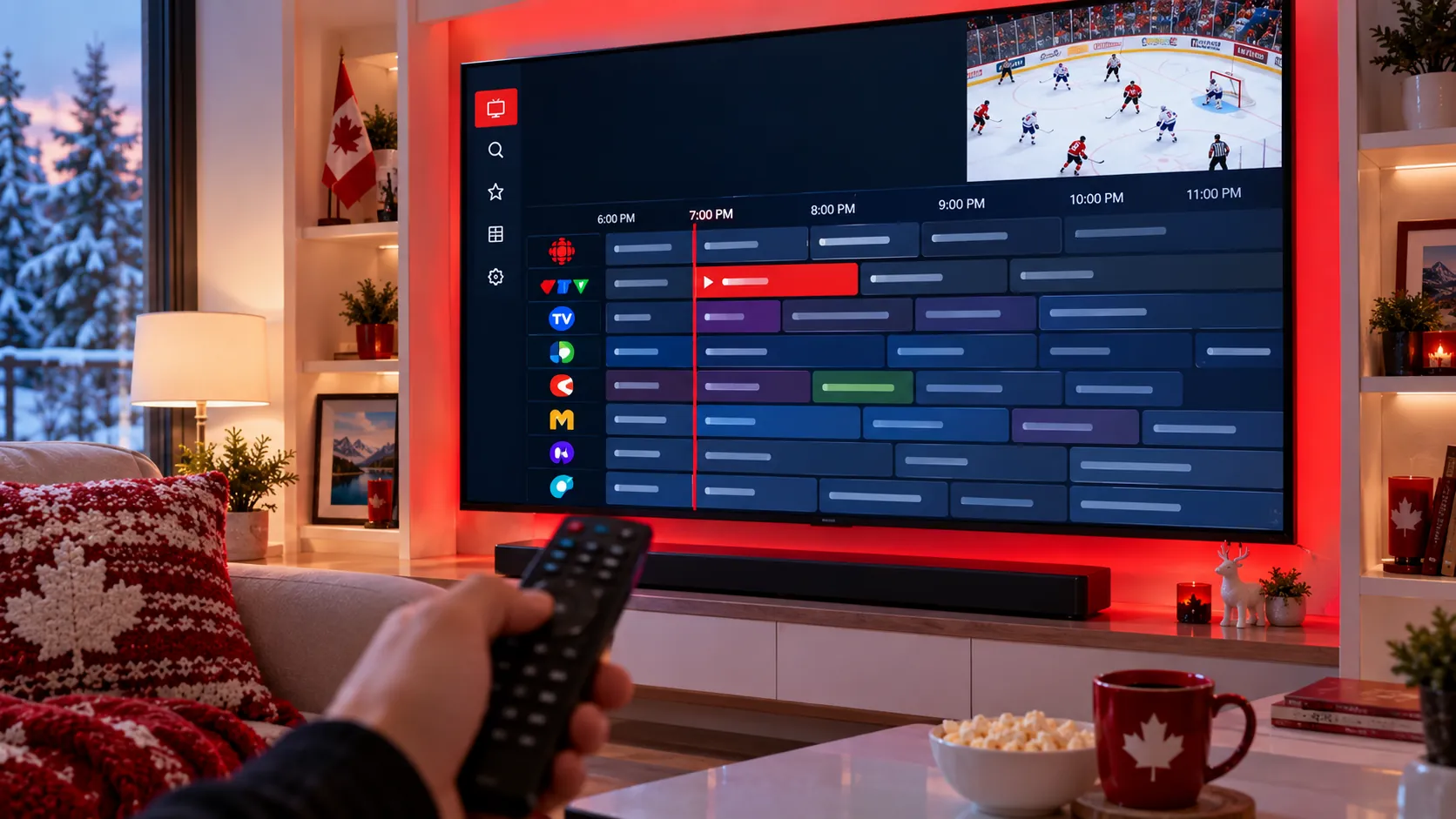
The TV guide is what makes IPTV feel like real television: you see what’s on now, what’s on next and what’s coming up tonight. In IPTV it’s called the EPG (Electronic Programme Guide). Here’s how the IPTV TV guide works, how to get the most out of it, and how to fix the most common problem of all – a guide that shows “No information”.
What Is EPG in IPTV?
An EPG is a schedule file that lists programmes for each channel: titles, start and end times and often a short description. Your IPTV player app downloads that file and draws the familiar on-screen grid. The channels and the guide come from your IPTV provider – the app simply displays them.
- With an Xtream Codes login (username, password and server URL), the guide normally loads automatically.
- With an M3U playlist, some apps need a separate EPG link (often an XMLTV URL) that you paste into the app’s settings.
What You Can Do with the IPTV TV Guide
- See what’s on now and next across all your channels at a glance.
- Browse ahead to plan tonight’s viewing or the weekend’s big game.
- Set reminders in apps that support them, so you never miss the start of a show.
- Catch up on recent programmes on channels that offer catch-up (often shown with a small clock or replay icon).
- Organize favourites so the guide opens on the channels your family actually watches.
How to Fix a Missing or Wrong TV Guide
If your guide is empty, shows “No information” or has the wrong times, work through these fixes in order:
- Give it a few minutes. After a fresh login the app has to download a large schedule file – the guide can stay blank for a minute or two.
- Refresh or update the EPG in the app’s settings (look for “Update EPG”, “Refresh guide” or “Reload playlist”).
- Check the EPG link if you use an M3U playlist – make sure it’s pasted exactly, with no spaces at the start or end.
- Fix the time zone. Canada has six time zones, from Pacific to Newfoundland. If programmes look shifted by one or more hours, set your device’s time zone correctly and use the app’s EPG time offset (sometimes called “timeshift”) to adjust.
- Clear the app cache on Firestick or Android (Settings → Applications → your app → Clear cache), then reopen the app.
- Re-add your login. Removing the playlist and adding it again forces a clean download of channels and guide.
- Ask your provider. Some channels simply don’t have guide data. If a channel you watch every day has no guide, let your provider know.
Which Apps Have the Best TV Guide?
On Firestick and Android TV, TiviMate is known for its full-screen, cable-style guide. IPTV Smarters Pro is simpler to set up, and Apple users can choose apps such as GSE Smart IPTV. Our roundup of the best IPTV player apps in 2026 compares them, and our device guides cover Firestick, Samsung and LG Smart TVs and iPhone, iPad and Apple TV.
Tips for a Faster, Cleaner Guide
- Hide channel groups you never watch – a smaller guide loads faster and is easier to scroll.
- Set the guide to update automatically once a day, ideally overnight.
- Use a wired connection or strong 5 GHz Wi-Fi so large guide files download quickly.
- Keep your IPTV app up to date – guide bugs are often fixed in new versions.
Missed a show? See IPTV catch-up and recording. If the guide never loads, check your login type in M3U vs Xtream Codes.
IPTV TV Guide FAQ
Is the TV guide included with my IPTV subscription?
With IPStream TV, yes – the guide data comes with your login and loads in compatible apps automatically.
Why do some channels show “No information”?
Either the guide hasn’t finished loading, the time zone is off, or that particular channel has no schedule data. Try the fixes above, then contact support if it continues.
Does the guide use a lot of data?
No – guide files are tiny compared with video. Watching one hour of HD uses far more data than a whole week of TV guide updates.
Try IPStream TV – Guide Included
Get 32,000+ live channels with a full TV guide, plus 200,000+ films and series on demand. Test it free for 24 hours with no card required, then pick a plan on our pricing page. Guide not loading? Message us on WhatsApp and we’ll help.
Leave a Reply