
🍁 Try IPStream TV free for 24 hours · Plans in CAD from $6.58/mo · 7-day refund promise · Get my trial

Category: IPTV Guides

  • IPTV in Yukon, the Northwest Territories and Nunavut: A Guide for the North

    IPTV in Yukon, the Northwest Territories and Nunavut: A Guide for the North

    Life in Canada’s North comes with long winters, long distances and internet that can be very different from the big cities. Can you still enjoy live TV and movies over IPTV? Often, yes. This guide covers IPTV in Yukon, the Northwest Territories and Nunavut – Whitehorse, Yellowknife, Iqaluit and smaller communities – with honest advice on internet, data and setup.

    The Big Question: Your Internet

    IPTV streams over the internet, so your connection decides everything. In the North, homes may be on cable or fibre in larger towns, fixed wireless, satellite or newer low-orbit satellite services. Each behaves differently:

    Connection typeIPTV outlook
    Cable or fibre (larger towns)Usually good for HD; check evening speeds
    Fixed wirelessCan work well with a strong, stable signal
    Low-orbit satelliteOften suitable for HD streaming; watch data use
    Traditional satelliteHigher delay and data caps can make live TV harder

    Read our full guide to IPTV in rural Canada and satellite internet.

    Watch Your Data Cap

    Many northern internet plans have monthly data limits. Streaming uses roughly 1–3 GB per hour in HD and much more in 4K. To stay within your cap:

    • Choose SD or HD instead of 4K.
    • Turn off auto-play of the next episode.
    • Watch on one screen at a time on smaller plans.
    • Check your provider’s usage meter regularly.

    See our speed and data guide for more numbers.

    Setup Tips for Northern Homes

    1. Connect the main TV by Ethernet if you can – it makes the most of every megabit.
    2. Keep the router away from cold exterior walls and windows.
    3. Use a surge protector: power flickers are common in winter storms.
    4. After a power cut, restart the modem first, then the router, then the TV.

    Our Wi-Fi setup guide covers router placement and mesh systems.

    Time Zones and the TV Guide

    The North spans several time zones. If programme times look wrong, adjust the time offset in your IPTV app’s guide settings. See our TV guide fixes.

    Long Winter Nights

    With long dark winters, a good on-demand library and live sports make a real difference. Which channels and games are available depends on your provider’s line-up, so check the ones you care about during the free trial. Our game night guide helps you get ready for hockey season.

    IPTV in the North FAQ

    Does IPTV work in Whitehorse, Yellowknife and Iqaluit?

    It can, if your internet connection is stable and fast enough for HD. Test it during the free trial, ideally in the evening.

    Will IPTV use all my data?

    HD streaming uses a few gigabytes per hour. On capped plans, choose lower quality and keep an eye on your usage.

    How much does IPTV cost?

    IPStream TV plans are priced in CAD: $29 for 3 months, $49 for 6 months, $79 for 12 months and $159 for 24 months. See our pricing page.

    Test It Before You Commit

    Start a free 24-hour trial, no card required, and see how IPTV runs on your own northern internet. Questions? Message us on WhatsApp. Elsewhere in the West? See IPTV in BC and IPTV in Alberta.

  • Best Wi-Fi Setup for IPTV in Canada: Router, Mesh and Ethernet Explained

    Best Wi-Fi Setup for IPTV in Canada: Router, Mesh and Ethernet Explained

    Most IPTV problems in Canadian homes are not caused by the IPTV service. They are caused by Wi-Fi: a router in the wrong place, a basement TV too far away, or a crowded 2.4 GHz network on a busy evening. This guide shows how to get a stable Wi-Fi setup for IPTV in Canada – when to use Ethernet, when you need a mesh system and how to place your router so the picture stays smooth.

    Why Wi-Fi Is the Weak Link

    IPTV sends a constant stream of video to your TV. Unlike a web page that loads once, the stream needs a steady connection for hours. Walls, floors, microwaves, neighbours’ networks and distance all weaken Wi-Fi, and the first thing you notice is buffering, pixelation or a frozen channel.

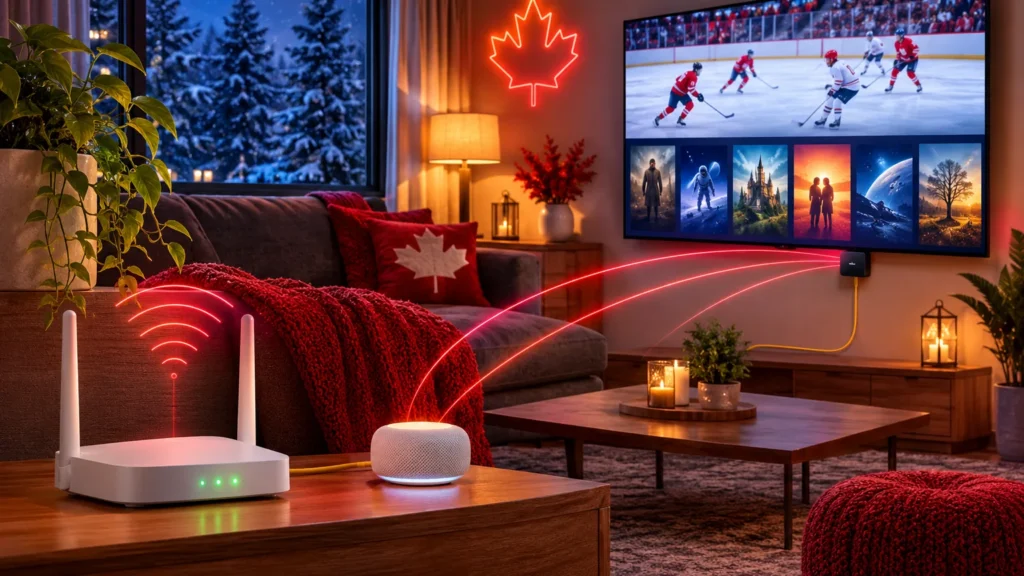
    Wi-Fi router and mesh node sending a strong signal to a TV streaming live hockey

    Ethernet vs Wi-Fi: Which Is Better?

    OptionStrengthsWeak points
    Ethernet cableMost stable, no interference, lowest delayNeeds a cable run to the TV
    5 GHz Wi-FiFast and usually clear of interferenceShorter range; walls and floors weaken it
    2.4 GHz Wi-FiLonger rangeCrowded and slower; avoid for the main TV
    Powerline adaptersUse your home’s wiring when Wi-Fi is weakPerformance depends on your wiring
    Mesh Wi-FiCovers a large home with several nodesCosts more than a single router

    If you can run a cable to the main TV, do it. Ethernet is the simplest fix for most buffering. Many streaming devices need a small adapter to add an Ethernet port; check what yours supports. For help choosing a device, see our guide to the best streaming devices for IPTV.

    Where to Put Your Router

    • Place it in a central, open spot, ideally on the main floor and off the floor.
    • Keep it away from microwaves, cordless phones, thick walls and metal shelves.
    • Avoid cabinets, basements corners and behind the TV.
    • Point antennas straight up if your router has them.
    • Keep the modem and router powered and ventilated.

    Do You Need Mesh Wi-Fi?

    A mesh system uses a main router plus extra nodes placed around your home so every room gets a strong signal. It is worth considering if:

    • you have two or three floors, or a long layout;
    • the TV is in the basement or far from the router;
    • you have older brick or plaster walls that block signals;
    • several people stream at once.

    Put each mesh node about halfway between the router and the weak spot, not in the weak spot itself. If your nodes support a wired connection between them, use it: a wired backhaul gives the best result.

    Router Settings That Help IPTV

    1. Use 5 GHz for the TV and streaming device; keep 2.4 GHz for far-away devices.
    2. Pick a less crowded channel if your router offers it.
    3. Turn on QoS or device priority for the main TV if available.
    4. Update the router firmware and restart it once a month.
    5. Name your 2.4 GHz and 5 GHz networks differently so you choose the right one.

    How Much Speed Do You Need?

    QualityRough speed per stream
    HD10–15 Mbps
    Full HDAbout 20 Mbps
    4K25 Mbps or more

    Add up every screen that can stream at the same time, plus phones and laptops. Read our internet speed guide and, if your connection is the issue, our guide to using IPTV with Bell, Rogers, Telus and Videotron.

    Wi-Fi Problems and Fixes

    ProblemFix
    Buffering only in the basementAdd a mesh node or powerline adapters, or use Ethernet
    Fine in the day, slow at nightSwitch to 5 GHz and test again; try a different channel
    Stream drops when someone microwavesMove the router away from the kitchen or use 5 GHz
    Wi-Fi shows full bars but video stuttersTest speed on the TV itself; use Ethernet if possible
    Several TVs buffer at onceCheck your total speed and lower quality on secondary screens

    More fixes in our freezing fixes and our multiple TVs guide.

    IPTV Wi-Fi Setup FAQ

    Do I need a special router for IPTV?

    No special IPTV router is needed. A reliable modern router with 5 GHz support, placed well, is usually enough. Mesh Wi-Fi helps larger homes.

    Is Wi-Fi 6 worth it for IPTV?

    It can help in busy homes with many devices, but a good placement and an Ethernet cable make a bigger difference than the Wi-Fi version.

    How much does IPTV cost?

    IPStream TV plans are priced in CAD: $29 for 3 months, $49 for 6 months, $79 for 12 months and $159 for 24 months. See our pricing page.

    Test Your Setup for Free

    Start a free 24-hour trial, no card required, and watch during your busiest evening hours to see how your Wi-Fi performs. Need help with your setup? Message us on WhatsApp.

  • IPTV in Québec City, Laval, Sherbrooke and Trois-Rivières: A Québec Guide

    IPTV in Québec City, Laval, Sherbrooke and Trois-Rivières: A Québec Guide

    Montréal gets most of the attention, but Québec is much bigger than one city. This guide covers IPTV in Québec City, Laval, Sherbrooke, Trois-Rivières, Saguenay and Lévis – what you need, how to set up French and English channels, tips for local homes and winter weather, and how to test before you subscribe.

    Why Québec Households Are Switching to IPTV

    • French and English in one app – handy for bilingual families.
    • Lower monthly cost than many cable packages once rentals and fees are added.
    • No dish to clear after a snowstorm.
    • Watch at the chalet – your login goes with you.

    What You Need

    ItemWhat to look for
    InternetAbout 10–15 Mbps per HD stream, 25 Mbps or more for 4K
    DeviceSmart TV, Fire TV Stick, Google TV, Apple TV, phone or computer
    Connection to the TVEthernet or strong 5 GHz Wi-Fi
    SubscriptionStart with a free 24-hour trial

    City by City

    CityLocal tip
    Québec CityOlder stone homes in the old town weaken Wi-Fi – add a mesh node near the TV
    LavalMany families watch on several TVs at once – check your speed per screen
    SherbrookeStudent apartments: see our student guide
    Trois-RivièresBasement TVs may need powerline adapters or a mesh node
    Saguenay and the northLong winters and rural internet – see our rural IPTV guide
    Lévis and the South ShoreCheck evening speeds during the free trial

    Setting Up French and English Channels

    1. Create two favourites lists: one for French channels, one for English.
    2. Set the app language to the main viewer’s preference.
    3. Use the TV guide to see what’s on in both languages.
    4. Check the French channels you care about most during the trial – line-ups differ between providers.

    More details in our French TV guide and IPTV Montréal page.

    Hockey Night in Québec

    Game nights put the most pressure on your connection. Restart your router before puck drop, keep the main TV on a wired connection and choose HD if 4K stutters. Which games you can watch depends on the channels in your provider’s line-up, so test them during the trial. See our game night guide.

    Winter Tips

    • Plug your router and TV into a surge protector.
    • After a power cut, restart the modem first, then the router, then the TV.
    • Keep the IPTV app on your phone as a backup screen.
    • At the chalet, lower the quality on slower internet – see our cottage guide.

    IPTV in Québec FAQ

    Does IPTV work in Québec City and Laval?

    Yes. With a stable internet connection, IPTV works across Québec, from the cities to most rural areas.

    Can I watch French and English channels?

    Most line-ups include both, but they vary. Test your must-have channels in each language during the free trial.

    How much does IPTV cost?

    IPStream TV plans are priced in CAD: $29 for 3 months, $49 for 6 months, $79 for 12 months and $159 for 24 months. See our pricing page.

    Try It Free in Québec

    Start a free 24-hour trial, no card required. Questions? Message us on WhatsApp. Elsewhere? See IPTV Ottawa–Gatineau and IPTV Ontario.

  • Best Streaming Device for IPTV in Canada (2026): Firestick vs Google TV vs Apple TV vs Shield

    Best Streaming Device for IPTV in Canada (2026): Firestick vs Google TV vs Apple TV vs Shield

    Your streaming device makes a bigger difference to IPTV than most people expect. The same subscription can feel fast and smooth on one box and sluggish on another. This guide compares the best streaming devices for IPTV in Canada in 2026 – Fire TV Stick, Google TV, Apple TV, Nvidia Shield, Smart TV apps and Android boxes – so you can pick the right one for your TV, budget and household.

    What Makes a Good IPTV Device?

    • Speed: enough processing power and memory to load channel lists and the TV guide quickly.
    • App support: access to popular IPTV players such as TiviMate or IPTV Smarters.
    • Connection: strong Wi-Fi 5/6 and, ideally, an Ethernet port or adapter.
    • Picture: 4K and HDR support if you have a 4K TV.
    • Remote: a simple remote the whole family can use.

    Quick Comparison

    DeviceBest forWatch out for
    Fire TV Stick 4K / 4K MaxBest value, easy setup, very popular in CanadaSome players need sideloading; storage is limited
    Google TV devices (Chromecast with Google TV, Google TV Streamer)Clean interface, Play Store appsLower-end models can feel slow with big channel lists
    Apple TV 4KSmooth, premium, great for Apple householdsFewer IPTV player choices; higher price
    Nvidia Shield TVFastest Android TV box, great for power usersHigher price; more than most homes need
    Smart TV apps (Samsung, LG)No extra boxPlayer choice and speed vary by TV model and age
    Android TV boxesFlexible, many appsQuality varies a lot – choose a reputable brand

    Fire TV Stick: The Popular All-Rounder

    For most Canadian homes, a Fire TV Stick 4K is the easiest starting point: affordable, small and fast enough for live TV and on-demand. Plug it into HDMI, connect to Wi-Fi and install your player. Follow our Firestick IPTV setup guide to be watching in about 10 minutes.

    Google TV: Simple and Familiar

    Google TV devices give you the Play Store, voice search and a tidy home screen. Players like TiviMate and IPTV Smarters install directly. See our Google TV setup guide.

    Apple TV 4K: Premium and Smooth

    If your household uses iPhones and iPads, Apple TV 4K is very smooth and easy to use. The choice of IPTV players is smaller, so check that your favourite app is available first. See our Apple TV and iPhone guide.

    Nvidia Shield: For Power Users

    The Shield is one of the fastest Android TV boxes and handles large channel lists, 4K and multiple apps with ease. It costs more, so it is best for people who stream a lot or want the smoothest experience.

    Smart TV Apps: No Extra Box

    Many recent Samsung and LG TVs can run IPTV players directly. It is the cheapest option if your TV is fairly new, but older models may be slow. Our Samsung and LG guide explains what to check.

    Which Device Should You Choose?

    Your situationOur suggestion
    First IPTV device, tight budgetFire TV Stick 4K
    You prefer Google and the Play StoreA Google TV device
    Apple householdApple TV 4K
    Big 4K TV, heavy use, several appsNvidia Shield TV
    Recent Samsung or LG TVTry the TV app first
    Several TVs in the houseOne device per TV – see our multiple TVs guide

    Tips for a Smooth Picture on Any Device

    1. Use Ethernet or an Ethernet adapter for the main TV when possible.
    2. Keep the device updated and restart it once a week.
    3. Clear the player app’s cache if it starts to feel slow.
    4. Choose HD instead of 4K on busy evenings if the stream stutters.

    More help in our freezing fixes and our guide to IPTV player apps.

    Best IPTV Device FAQ

    Do I need a box for IPTV?

    Not always. Many Smart TVs can run IPTV apps. A streaming stick or box is helpful if your TV is older or slow. See Do you need an IPTV box?

    Which device is best for 4K IPTV?

    Fire TV Stick 4K Max, Google TV 4K devices, Apple TV 4K and Nvidia Shield all support 4K. Read our 4K IPTV guide for the internet speed you need.

    How much does IPTV cost?

    IPStream TV plans are priced in CAD: $29 for 3 months, $49 for 6 months, $79 for 12 months and $159 for 24 months. See our pricing page.

    Test Your Device for Free

    Start a free 24-hour trial, no card required, and see how IPTV runs on the device you already own. Not sure which to buy? Ask us on WhatsApp.

  • IPTV in Ontario: A Province-Wide Guide from Windsor to Thunder Bay

    IPTV in Ontario: A Province-Wide Guide from Windsor to Thunder Bay

    Ontario is Canada’s biggest TV market, from downtown Toronto condos to farmhouses near London and cottages in Muskoka. This guide covers IPTV in Ontario – Hamilton, London, Kitchener-Waterloo, Windsor, Sudbury, Thunder Bay and everywhere in between – with what you need, setup tips for each kind of home and what to check before you subscribe.

    Why Ontario Households Are Switching to IPTV

    • Lower monthly cost than many cable and satellite packages once rentals and fees are added.
    • No dish or technician – IPTV runs over your existing internet.
    • Every screen – living room, basement, kids’ tablet and phone.
    • Take it with you – to the cottage, the trailer or a student apartment.

    What You Need

    ItemWhat to look for
    InternetAbout 10–15 Mbps per HD stream, 25 Mbps or more for 4K
    DeviceSmart TV, Fire TV Stick, Google TV, Apple TV, phone or computer
    Connection to the TVEthernet or strong 5 GHz Wi-Fi
    SubscriptionStart with a free 24-hour trial

    IPTV Across Ontario: City by City

    AreaLocal tip
    Toronto and the GTACondo Wi-Fi gets crowded at night – see IPTV Toronto and our GTA guide
    OttawaEnglish and French on one screen – see IPTV Ottawa
    Hamilton and NiagaraOlder brick homes weaken Wi-Fi; a mesh node near the TV helps
    London and Kitchener-WaterlooStudent rentals and new subdivisions – check the speed in each room
    WindsorPlenty of sports fans – test live games at peak time during the trial
    Sudbury, North Bay and Thunder BayLong winters and longer distances – rural internet tips below
    Muskoka and cottage countryFixed wireless, LTE or satellite – see our cottage guide

    Setup Tips for Ontario Homes

    1. Connect the main TV by Ethernet, or use 5 GHz Wi-Fi close to the router.
    2. Basement TV? Add a mesh node or powerline adapters – see our multiple TVs guide.
    3. Restart your router once a week and before big games.
    4. Choose HD instead of 4K on busy evenings if the picture stutters.

    Still buffering? Work through our freezing fixes.

    Northern and Rural Ontario

    Outside the big cities, many homes rely on fixed wireless, 5G home internet or satellite. These can stream HD well when the signal is stable, but watch for data caps. Our guide to IPTV in rural Canada explains what works best.

    Game Night in Ontario

    Hockey, basketball, baseball and soccer nights are when everyone streams at once. Which games you can watch depends on the channels in your provider’s line-up, so test the ones you care about during the free trial. Our game night setup guide has a full checklist.

    How Much Does IPTV Cost in Ontario?

    PlanPrice (CAD)Per month
    3 months$29$9.67
    6 months$49$8.17
    12 months$79$6.58
    24 months$159$6.63

    All plans include the same line-up – only the length changes. See our pricing page and our guide to IPTV costs in Canada.

    IPTV in Ontario FAQ

    Does IPTV work everywhere in Ontario?

    Yes, wherever you have a stable internet connection – from Windsor to Ottawa and up to Thunder Bay.

    Can I use IPTV at my cottage?

    Yes. Bring your streaming stick, sign in and test the connection first. Lower the quality on slower cottage internet.

    Is IPTV legal in Ontario?

    IPTV technology is legal in Canada. What matters is whether a provider has the rights to what it streams. Read Is IPTV legal in Canada?

    Try It Free in Ontario

    Start a free 24-hour trial, no card required, and test it on your own TV and internet. Questions? Message us on WhatsApp.

  • IPTV for Snowbirds: Watching Canadian TV in Florida, Arizona and Beyond

    IPTV for Snowbirds: Watching Canadian TV in Florida, Arizona and Beyond

    Every winter, many Canadians head south to Florida, Arizona, Texas or Mexico. The question that comes up every year: how do I watch Canadian TV while I’m away? This guide for snowbirds explains how IPTV works when you travel, what to pack, how to deal with rental Wi-Fi and what to check before you leave.

    Can I Use My IPTV Subscription Outside Canada?

    IPTV runs over the internet, so in many cases you can sign in wherever you have a stable connection. However, some channels and providers limit viewing by location because of broadcasting rights, and providers can have their own rules. Read your provider’s terms and test your favourite channels before you travel – IPStream TV’s free trial is a good time to ask us.

    What to Pack

    ItemWhy
    Your streaming stickPlug it into the TV at the condo or RV park – no need to install apps on someone else’s TV
    Its power adapter and a short HDMI extenderSome wall-mounted TVs have tight HDMI ports
    Your login detailsSaved somewhere safe, not just in your head
    A travel router (optional)Gives you your own Wi-Fi network for all your devices
    An Ethernet cable (optional)Many condos have a port near the TV

    Dealing with Condo and RV-Park Wi-Fi

    • Ask the rental for the internet speed before you book.
    • Test speed on the TV itself, not just on your phone.
    • Use the 5 GHz network if there is one, or plug in by cable.
    • Avoid peak evening hours for 4K; Full HD is more forgiving.
    • Some hotel and RV-park networks use a login page that streaming sticks struggle with – a travel router can help.

    More connection tips in our cottage and RV guide and internet speed guide.

    Time Zones and the TV Guide

    Arizona, Florida and Mexico may be in a different time zone from home. If programme times look wrong, adjust the time offset in your IPTV app’s TV guide settings. See our TV guide fixes.

    A Note on VPNs

    Some travellers use a VPN for privacy on shared Wi-Fi. A VPN can also slow your connection, and using one to get around a service’s location rules may break its terms. Read our VPN guide before deciding.

    Before You Leave: Checklist

    1. Check your plan is active for the whole trip.
    2. Test the channels you care about most.
    3. Pack the stick, power adapter and login details.
    4. Save our WhatsApp number in case you need help on the road.

    IPTV for Snowbirds FAQ

    Will IPTV work in Florida or Arizona?

    It can, if your connection is stable and your provider and channels allow it. Test before you go.

    Can I use the condo’s Smart TV?

    Often yes, but bringing your own streaming stick is simpler and keeps your login private.

    How much does IPTV cost?

    IPStream TV plans are priced in CAD: $29 for 3 months, $49 for 6 months, $79 for 12 months and $159 for 24 months. See our pricing page.

    Get Ready Before You Fly South

    Start a free 24-hour trial, no card required, and test everything at home first. Questions about travelling? Message us on WhatsApp.

  • 4K IPTV in Canada: What You Need for a Sharp, Smooth Picture

    4K IPTV in Canada: What You Need for a Sharp, Smooth Picture

    A big 4K TV deserves a sharp picture. But 4K IPTV in Canada only looks its best when four things line up: the right TV or device, enough internet speed, a solid connection to the TV and content that is actually streamed in 4K. This guide explains each one so you know exactly what to expect before game night or a movie marathon.

    What “4K IPTV” Really Means

    4K (Ultra HD) has four times the pixels of Full HD. With IPTV, the picture you see depends on how each channel or title is streamed. Many live channels are broadcast in HD or Full HD, while some channels and many on-demand titles are available in 4K. A 4K TV will still upscale HD content, so it often looks very good even when the source is not true 4K.

    What You Need for 4K IPTV

    PartWhat to look for
    TVA 4K (UHD) TV; HDR support is a bonus
    Streaming deviceA 4K-capable device such as a Fire TV Stick 4K, a Google TV 4K device, an Apple TV 4K or a recent Smart TV app
    Internet speedAbout 25 Mbps or more per 4K stream, plus room for other devices
    Connection to the TVEthernet, or strong 5 GHz Wi-Fi close to the router
    HDMIUse an HDMI port and cable that support 4K; plug into the TV’s 4K/HDR port
    ContentChannels and titles that are streamed in 4K

    Internet Speed: HD vs Full HD vs 4K

    QualityRough speed per stream
    HD10–15 Mbps
    Full HDAbout 20 Mbps
    4K25 Mbps or more

    Add up every screen that may stream at the same time. Two 4K TVs and a phone need much more than one TV. Our internet speed guide explains data use too, which matters if your plan has a cap.

    Set Up Your TV and Device for 4K

    1. Plug the streaming device into the TV’s HDMI port marked 4K, HDR or ARC/eARC if available.
    2. In the device settings, set the display resolution to 4K or “Auto”.
    3. Turn on the TV’s enhanced HDMI or “UHD colour” setting for that port.
    4. In the IPTV app, pick the 4K version of a channel or title when one is offered.
    5. Restart the device after changing display settings.

    Step-by-step help for your device: Fire TV Stick, Samsung and LG TVs, Google TV and Apple TV.

    Why Your 4K Stream Buffers – and How to Fix It

    ProblemFix
    Buffering only in 4KUse Ethernet or move closer to the router; choose Full HD on busy evenings
    Picture looks softCheck the device is set to 4K and the channel is a 4K version
    No 4K option in settingsTry another HDMI port or cable that supports 4K
    Fine in the day, slow at nightEvening network congestion; test at peak hours during the trial

    More fixes in our freezing guide.

    Is 4K Worth It?

    For big screens of 55 inches and up, yes – especially for films, nature shows and sport. On smaller TVs or phones, Full HD is often hard to tell apart and uses much less data. Many families keep the living-room TV on 4K and other screens on HD.

    4K IPTV Canada FAQ

    Is every channel in 4K?

    No. Many live channels stream in HD or Full HD. Check the 4K channels and titles you care about during the free trial.

    Do I need a new TV for 4K IPTV?

    You need a 4K TV to see 4K. An HD TV will still play IPTV, just in HD.

    How much does IPTV cost?

    IPStream TV plans are priced in CAD: $29 for 3 months, $49 for 6 months, $79 for 12 months and $159 for 24 months. See our pricing page.

    Test 4K on Your Own TV

    Start a free 24-hour trial, no card required, and check 4K on your own TV and internet. Questions about your setup? Message us on WhatsApp.

  • IPTV and Working From Home in Canada: Stream TV Without Dropping Video Calls

    IPTV and Working From Home in Canada: Stream TV Without Dropping Video Calls

    Many Canadians now work from home and watch TV in the same house. The trouble starts when a video call, a live stream and a family movie all use the same internet at the same time. This guide shows how to run IPTV and a work-from-home setup together without dropped calls or buffering.

    Why Work and Streaming Clash

    Your home internet has a fixed amount of speed shared between all devices. A video meeting needs steady upload and download, while an HD stream needs a constant download. When the total goes above what your plan can deliver, one of them suffers, usually the one that is least forgiving, such as a live call.

    How Much Speed Do You Need?

    ActivityRough speed needed
    HD IPTV stream10–15 Mbps download
    4K IPTV stream25 Mbps or more download
    Video callA few Mbps both ways
    Large file upload or cloud backupAs much upload as it can get
    Phones, tablets and smart devicesA few Mbps in total

    Add up what runs at once and keep some headroom. Our internet speed guide has the full numbers.

    Step 1: Give Work Its Own Path

    1. Connect the work laptop by Ethernet if you can.
    2. Put the work device on the 5 GHz band and keep the TV on a different connection.
    3. If your router has a QoS or device priority option, prioritise the work laptop.
    4. Keep the router in an open, central spot, not in a cabinet.

    Step 2: Make the TV Less Demanding

    • Lower the stream quality one step during meetings.
    • Use a wired connection for the main TV to free up Wi-Fi.
    • Pause automatic updates and large downloads on streaming devices.
    • Close apps you do not use on the streaming device.

    Step 3: Schedule the Heavy Stuff

    Cloud backups, large uploads and software updates are best run outside work hours. During meetings, ask the household to avoid starting a 4K movie on several TVs at once.

    Step 4: Add Mesh Wi-Fi for Bigger Homes

    A home office in the basement and a living-room TV upstairs often need more than one router. A mesh Wi-Fi system or powerline adapters bring a strong signal to both. See our multiple TVs guide.

    Fixes for Dropped Calls and Buffering

    ProblemFix
    Call drops when the TV startsLower the TV quality; prioritise the work laptop
    TV buffers during meetingsUse Ethernet; check your plan’s real speed
    Everything slows in the eveningTest speed at peak hours; ask your provider about options
    Wi-Fi weak in the officeAdd a mesh node or use Ethernet

    More fixes in our freezing fixes, and a quick overview of using IPTV with your internet provider.

    IPTV and Working From Home FAQ

    Can I stream IPTV while on a video call?

    Yes, if your plan has enough speed for both. Use Ethernet for the work laptop and lower the stream quality during meetings.

    Do I need a faster internet plan?

    Maybe. Add up the speed of everything that runs at once and compare it with your plan’s real speed measured at peak hours.

    How much does IPTV cost?

    IPStream TV plans are priced in CAD: $29 for 3 months, $49 for 6 months, $79 for 12 months and $159 for 24 months. See our pricing page.

    Test It During Your Real Day

    Start a free 24-hour trial, no card required, and test it while you work. Questions about your setup? Message us on WhatsApp.

  • IPTV in Brampton, Mississauga and the GTA: A Guide for Townhouses, Basements and Condos

    IPTV in Brampton, Mississauga and the GTA: A Guide for Townhouses, Basements and Condos

    The Greater Toronto Area is more than Toronto: Brampton, Mississauga, Hamilton, Markham, Vaughan, Oakville and dozens of other communities each have their own housing, languages and TV habits. This guide covers IPTV in Brampton, Mississauga and the GTA: what you need, how to get a strong signal in townhouses, basements and condos, and how to set up for a multilingual household.

    Why GTA Households Choose IPTV

    • Lower monthly cost than many cable packages once rentals and fees are added.
    • Many languages, one app – build a favourites list for each family member.
    • Works in houses, townhouses and condos with no installer visit.
    • Easy to move – take your login to your next home in minutes.

    What You Need

    ItemWhat to look for
    InternetAbout 10–15 Mbps per HD stream; more for several screens
    DeviceSmart TV, Fire TV Stick, Google TV, Apple TV, phone or computer
    Connection to the TVEthernet or strong 5 GHz Wi-Fi
    SubscriptionStart with a free 24-hour trial

    Setup Tips by Home Type

    Home typeTip
    Townhouses (Brampton, Mississauga, Vaughan)Three floors with the router on one: add a mesh node on the TV floor
    Basement apartments and finished basementsWi-Fi weakens through floors; use Ethernet or powerline adapters
    Condos (Mississauga City Centre, Markham, Hamilton)Crowded Wi-Fi at night; use 5 GHz and keep the router near the TV
    Detached houses (Oakville, Burlington, Whitby)Place the router centrally and add mesh for the far rooms

    Several TVs in one house? See our multiple TVs guide.

    A Multilingual Household

    Families across the GTA watch in English, French, Punjabi, Hindi, Urdu, Tamil, Arabic, Tagalog, Mandarin, Cantonese, Portuguese, Italian and many other languages. Line-ups differ between providers, so list the languages and channels you need before you subscribe and test each one during the trial. Our international channels guide and South Asian IPTV guide show how to check.

    Game Night in the GTA

    Raptors, Leafs, Jays and TFC nights are when everyone streams at once. Restart your router before the game, keep the main TV on a wired connection and choose HD if 4K stutters. Which games you can watch depends on the channels in your provider’s line-up, so check them during the trial. See our game night setup guide.

    Busy Evenings and Buffering

    Evening hours are the busiest for home internet. If the picture stutters, work through our freezing fixes and our internet speed guide.

    IPTV in the GTA FAQ

    Does IPTV work in Brampton, Mississauga and Hamilton?

    Yes. With a stable internet connection, IPTV works across the whole GTA and Golden Horseshoe.

    Can the whole family use different languages?

    Yes, if your line-up includes the channels you need. Build one favourites list per person.

    How much does IPTV cost?

    IPStream TV plans are priced in CAD: $29 for 3 months, $49 for 6 months, $79 for 12 months and $159 for 24 months. See our pricing page.

    Try It Free in the GTA

    Start a free 24-hour trial, no card required. Questions? Message us on WhatsApp. Looking at the city itself? See IPTV Toronto.

  • IPTV for Sports Fans in Canada: Hockey, Football, Soccer and More

    IPTV for Sports Fans in Canada: Hockey, Football, Soccer and More

    Canadians love sport well beyond hockey: football on Sundays, soccer matches, basketball, baseball, curling, CFL games and big international events. If you are thinking about IPTV for sports fans in Canada, the question is not only “can I watch live sport?” but “how do I keep the stream smooth, find the right channels and not miss the key moment?” This guide covers all of it.

    What Makes Sports the Toughest Test for IPTV

    Live sport has fast action, large crowds streaming at the same time and no way to pause without missing the moment. That is why a stable connection and a healthy device matter more than a long channel list.

    Step 1: List the Sports and Leagues You Follow

    Write down every league, team and event you care about, including any you only watch a few times a year. Channel line-ups differ between providers, and rights for sports events can change from season to season, so this list is your checklist during the free trial.

    Step 2: Test Live Sport During Busy Hours

    1. Start a free 24-hour trial and watch a live match or game, ideally at the same time as a big event.
    2. Check that the channels you need are in the line-up.
    3. Test the TV guide so you know when matches start.
    4. Try every screen you plan to use, not only the main TV.
    5. Send support a question and see how fast a person answers.

    Step 3: Get Your Setup Ready

    Part of your setupWhat to do
    Connection to the TVEthernet or strong 5 GHz Wi-Fi
    Internet speedAbout 10–15 Mbps per HD stream; more for 4K and extra screens
    DeviceFire TV Stick, Google TV, Apple TV or a recent Smart TV
    RouterRestart it before the match; use QoS if available
    Backup screenPhone or tablet with the app installed

    For the full game-day routine, see our live sports without cable guide and game night setup guide.

    Watching With a Crowd

    Hosting a match day? Ask guests to avoid big downloads, keep the main TV on a wired connection and set secondary screens to HD. Our multiple TVs guide shows how much speed each room needs.

    Handling Delay and Spoilers

    Streams can run a little behind a live broadcast, so a friend’s text or an app alert may arrive before your screen shows the goal. Mute notifications during the match and try to watch on the same service as the rest of your group.

    If the Stream Stumbles Mid-Match

    1. Check whether other apps work; if not, it is your internet.
    2. Lower the quality one step.
    3. Switch to another stream of the same channel if your app offers one.
    4. Restart the app, then the device.
    5. Keep the app on a phone as a backup.

    Our freezing fixes cover the common causes.

    A Note on Channels and Rights

    Which leagues and events you can watch depends on the channels in your provider’s line-up, and sports rights can change. Always check the games you care about during the trial and read the provider’s terms. Our IPTV legality guide explains what to ask.

    IPTV for Sports Fans FAQ

    Can I watch live sport with IPTV in Canada?

    Often yes, depending on the channels in the line-up. Test your must-watch events during the free trial.

    Which device is best for sport?

    A Fire TV Stick 4K or Google TV device on Ethernet is a popular, affordable choice. See our IPTV box guide.

    How much does IPTV cost?

    IPStream TV plans are priced in CAD: $29 for 3 months, $49 for 6 months, $79 for 12 months and $159 for 24 months. See our pricing page.

    Test It Before the Next Big Match

    Start a free 24-hour trial, no card required, and check your sports on your own TV. Tell us which leagues you follow on WhatsApp and we will help you test them.